 The DashApply Team
A great job can appear on LinkedIn and disappear from your radar in the same day. You save it, mean to come back, and then your feed fills up with noise while the role you actually wanted slips away. Usually, the issue is not LinkedIn itself. It is an alert built from a broad search that was never sharpened.
The best LinkedIn alerts do more than send notifications. They create a job search workflow that helps you spot relevant roles faster, track priority employers, and cut through distractions. In this guide, you will learn how to create LinkedIn job alerts, manage them on desktop and mobile, and turn the right openings into faster applications with DashApply.
Table of Contents
- Why LinkedIn Job Alerts Save You Hours Every Week
- How to Create a Job Alert on LinkedIn Desktop
- Creating and Managing Alerts on Mobile and for Specific Companies
- Fine Tuning Filters and Notifications So You Only Get Relevant Roles
- From Alert to Application Without Losing Momentum
- Troubleshooting When LinkedIn Job Alerts Are Not Working
Why LinkedIn Job Alerts Save You Hours Every Week
Repeating the same search every day steals time from applications. You open Jobs, enter a title, choose a location, set filters, scan the results, and then repeat the process tomorrow.
A LinkedIn job alert turns a specific search into ongoing monitoring. After you run a search, you can switch on alerts, choose a delivery frequency, and get updates by email or in the app. You can also edit or disable an alert when it no longer matches your target.
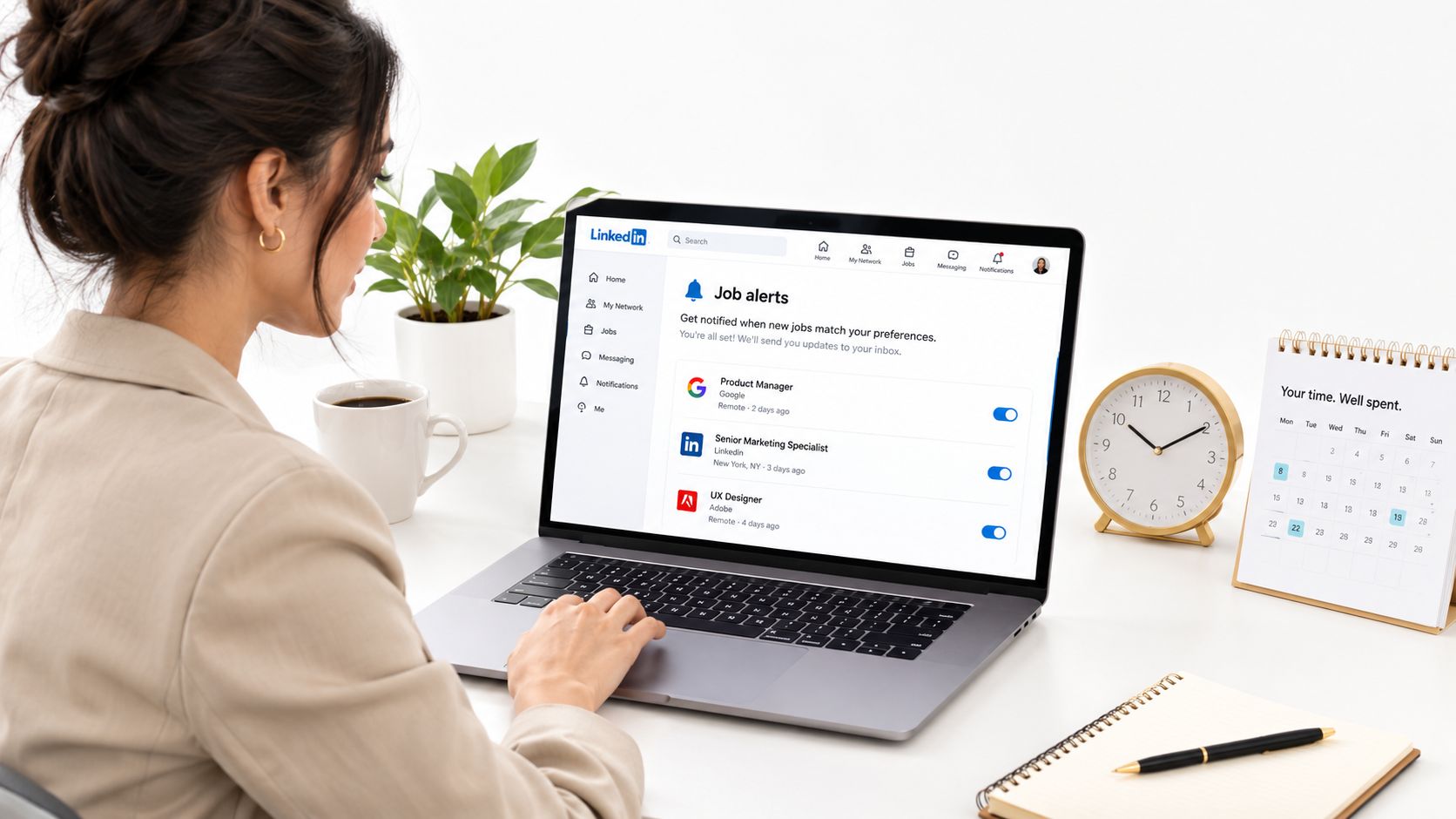
The search itself determines whether alerts save time or create noise. A search for “Marketing” is too broad. “Content Strategist + Remote + Entry-level,” plus the right filters, gives you a more useful stream. Review the results before saving the alert, because LinkedIn cannot judge fit for you.
Use two alert types:
- Role-based alerts: Track opportunities across employers for a defined title or job family.
- Company-based alerts: Track openings at specific employers you care about.
These solve different problems. Role alerts expand discovery. Company alerts help you avoid missing openings at priority employers. Keep them separate so broad alerts do not hide company-specific ones.
A job discovery workspace such as DashApply's job discovery workflow can sit alongside LinkedIn, helping you collect postings, review them quickly, and keep applications moving.
Practical rule: Build and test the search first, then activate the alert.
How to Create a Job Alert on LinkedIn Desktop
A desktop alert only helps when the search is focused. Build the search first, test the results, then turn on notifications.
Start with the search, not the notification
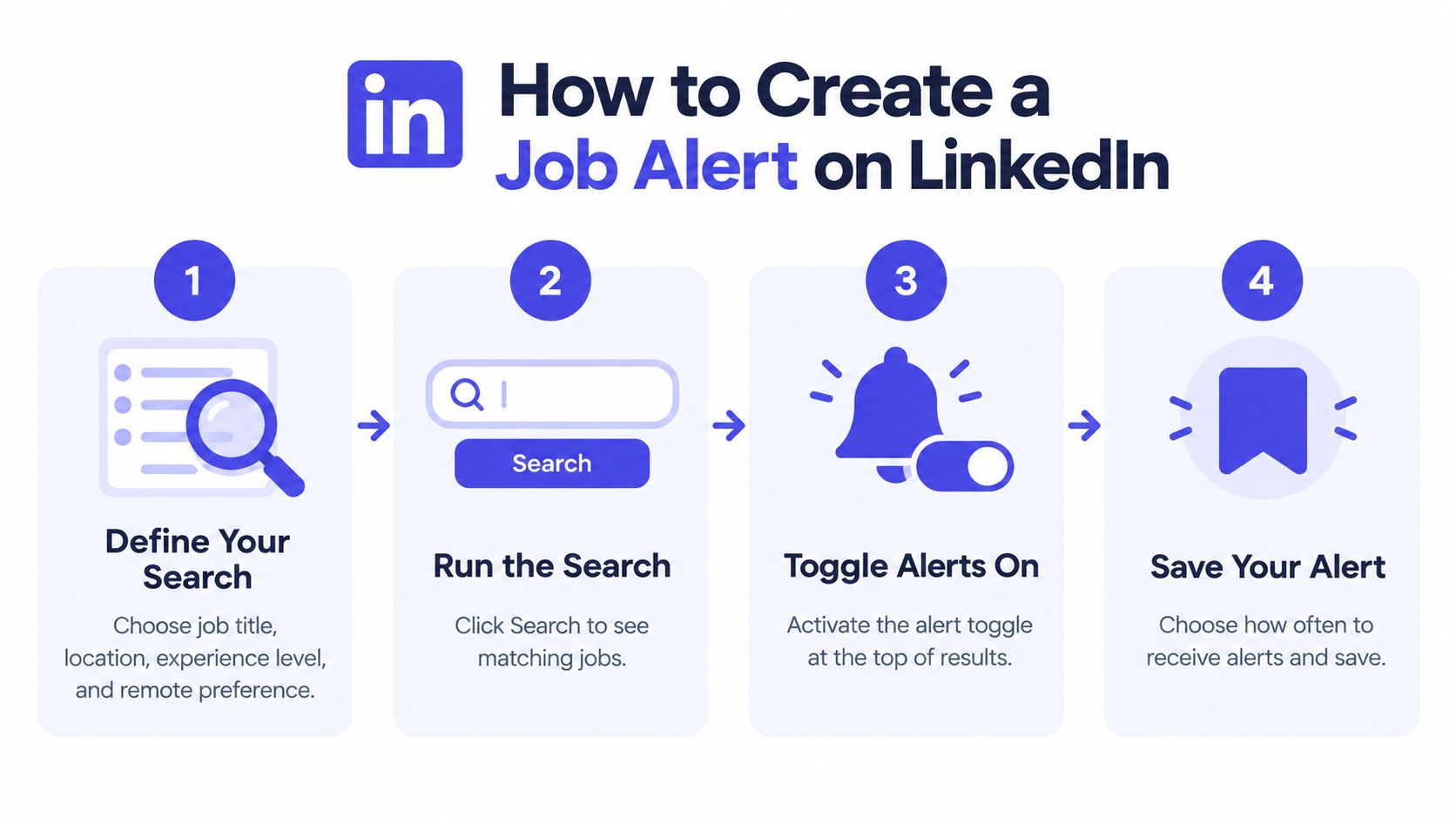
- Open LinkedIn and select Jobs.
- Enter the job title or keyword.
- Add the location, or choose remote if that fits your search.
- Apply filters such as experience level, employment type, or work arrangement.
- Run the search and review the results.
Use the job titles employers actually use, but do not cram every synonym into one alert. For example, “content strategist” and “content marketing manager” may work better as separate searches.
Be just as specific with location. A city-only search may miss remote work, while a broad region may show jobs you would never take. Create separate alerts only for places where you would actually apply.
Activate and configure the alert
After the results load, find the job alert toggle near the top of the page and switch it on. Choose how often alerts should arrive and whether you want them by email, app notification, or both.
Before keeping the alert, check four things:
- Do the titles match the role you want?
- Are the locations workable?
- Are the seniority levels right?
- Do irrelevant employers or functions keep appearing?
If the answer is no to any of these, refine the search before keeping the alert.
Give the alert a simple label in your notes, such as “Remote product design” or “Finance manager, Chicago.” This makes duplicates easier to spot.
Use this visual walkthrough to confirm the sequence:
Keep the system small. Pair a few focused searches with a fast review habit, then move suitable postings into DashApply so alerts lead to applications instead of saved tabs.
Creating and Managing Alerts on Mobile and for Specific Companies
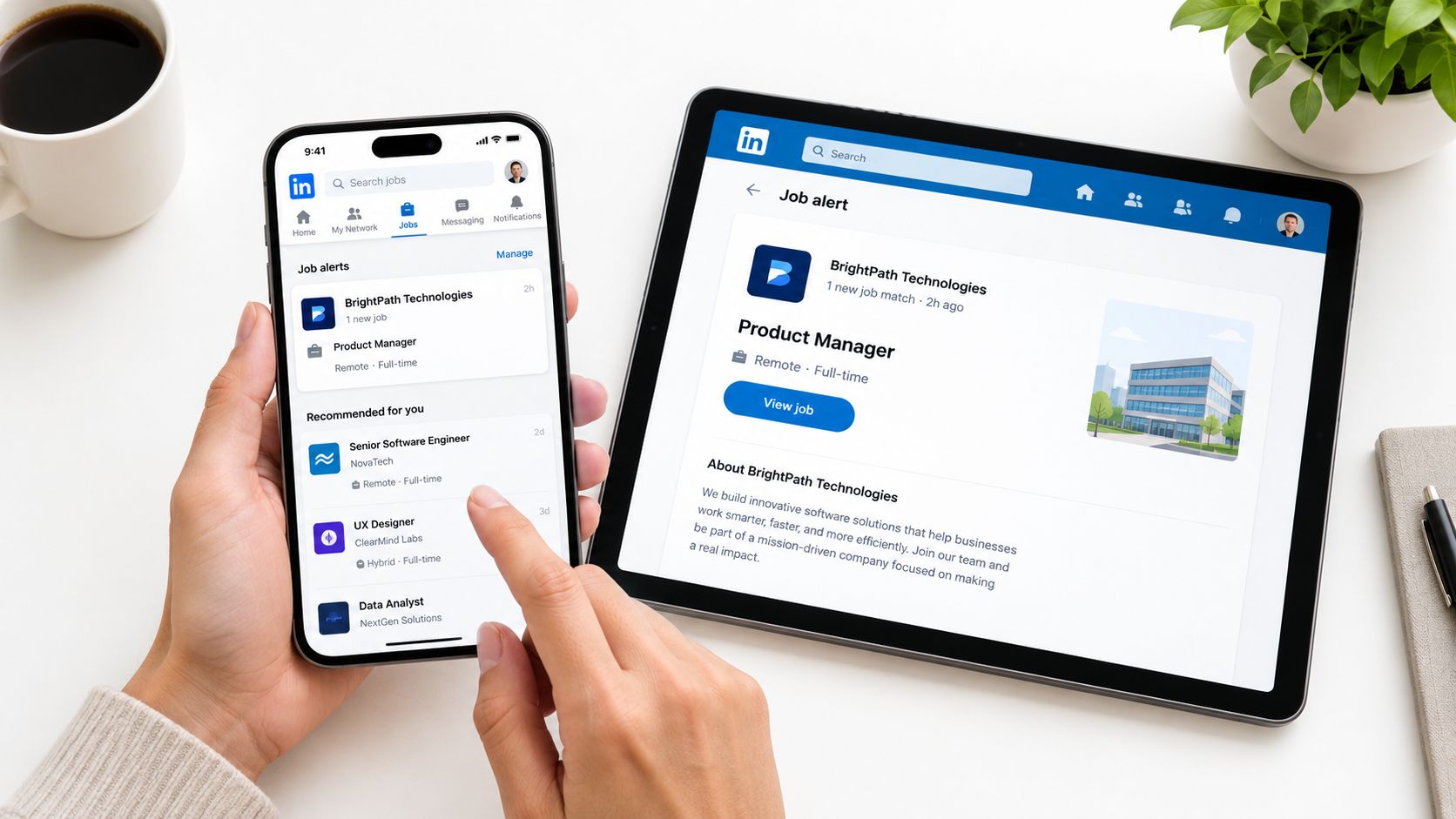
In the LinkedIn app, open Jobs, search for a role, apply filters, and turn on alerts for that search. Then confirm that LinkedIn can send app notifications. The company alert guidance from LinkedIn explains that alert preferences stay available in the Jobs area, so you can change them later.
Choose company alerts for targeted tracking
Company alerts start on an employer's page. Search for the company, open its page, select the Jobs tab, choose Create job alert, complete the settings, and save it.
Use company alerts when the employer matters more than one exact title. One employer may post similar work under several different titles, and a company alert can catch those variations.
Role alerts and company alerts serve different needs:
- Use a role alert to scan the wider market for a defined job family.
- Use a company alert when you would consider several relevant roles at one employer.
- Avoid duplication when a company alert repeats roles already covered by a narrow role search.
Keep the system current
Review active alerts in the Jobs area and update them when your target changes. Turn off alerts for roles, locations, or employers that no longer fit.
Every alert should have a clear purpose. If an alert keeps producing bad matches, rebuild it instead of endlessly tweaking a search that started too broad. Move strong postings into DashApply while they are fresh.
Fine Tuning Filters and Notifications So You Only Get Relevant Roles
A new alert is only a starting point. Review the first batch of results and adjust based on what is wrong. Tighten the title, location, experience level, employment type, or remote preference when results are too broad. If the stream is too narrow, loosen one filter at a time.
Salary can help where LinkedIn provides the filter, but it should not be the only screen. Employers do not always list pay, and a strict salary filter can hide good roles.
Match delivery to your working style
Email works well for scheduled review blocks. App notifications work better for active searches when you want to check new roles quickly. Either way, a notification is just a prompt to review.
Choose a frequency you can handle. Daily alerts work well for an active search. Weekly alerts suit lower-pressure exploration, though some roles may be older by the time you see them.
| Search Goal | Recommended Filters | Best Notification Frequency |
|---|---|---|
| Career switcher testing adjacent roles | Use the target function plus one transferable title, then keep location and experience level specific | Daily, so you can compare match quality |
| Remote applicant with defined experience | Combine the role title, remote preference, and realistic experience level | App notification or daily email |
| Targeted employer search | Use the company alert and review the Jobs tab for relevant openings | App notification for active searches |
| Passive market exploration | Keep the title broad enough to discover alternatives, but limit geography and seniority | Weekly or a light daily review |
Run a weekly alert audit
Set aside a short review block for every active alert. Pause or turn off searches that keep producing irrelevant roles, locations, levels, or employers. If an alert is close but imperfect, change one variable and review the next results before changing anything else.
Filter hygiene beats notification volume.
Keep each alert tied to one job-search purpose. If a role alert and a company alert surface the same postings, keep the cleaner search and remove the duplicate.
A workable system leaves you with a manageable review habit. Save promising roles, dismiss poor fits quickly, and move strong matches into DashApply while they are fresh.
From Alert to Application Without Losing Momentum
A relevant alert only helps if it leads to a timely application. A common failure pattern is saving the posting, delaying the decision, and coming back later with generic materials.
Use a short handoff between triage speed and application quality. First decide whether the role deserves attention. Then tailor the application only when the fit is clear.
Run a focused triage loop
Open the posting while it is fresh. Check the responsibilities, required skills, location, work arrangement, and application route. Classify the role:
- Apply: Your background fits the main requirements, and the role matches your search.
- Review: The role looks plausible, but one requirement needs a closer look.
- Skip: The level, location, function, or work arrangement does not fit.
For an apply or review decision, save the posting and note two or three experiences that support your candidacy. This is faster than rereading the listing later and gives your resume and cover letter direction.
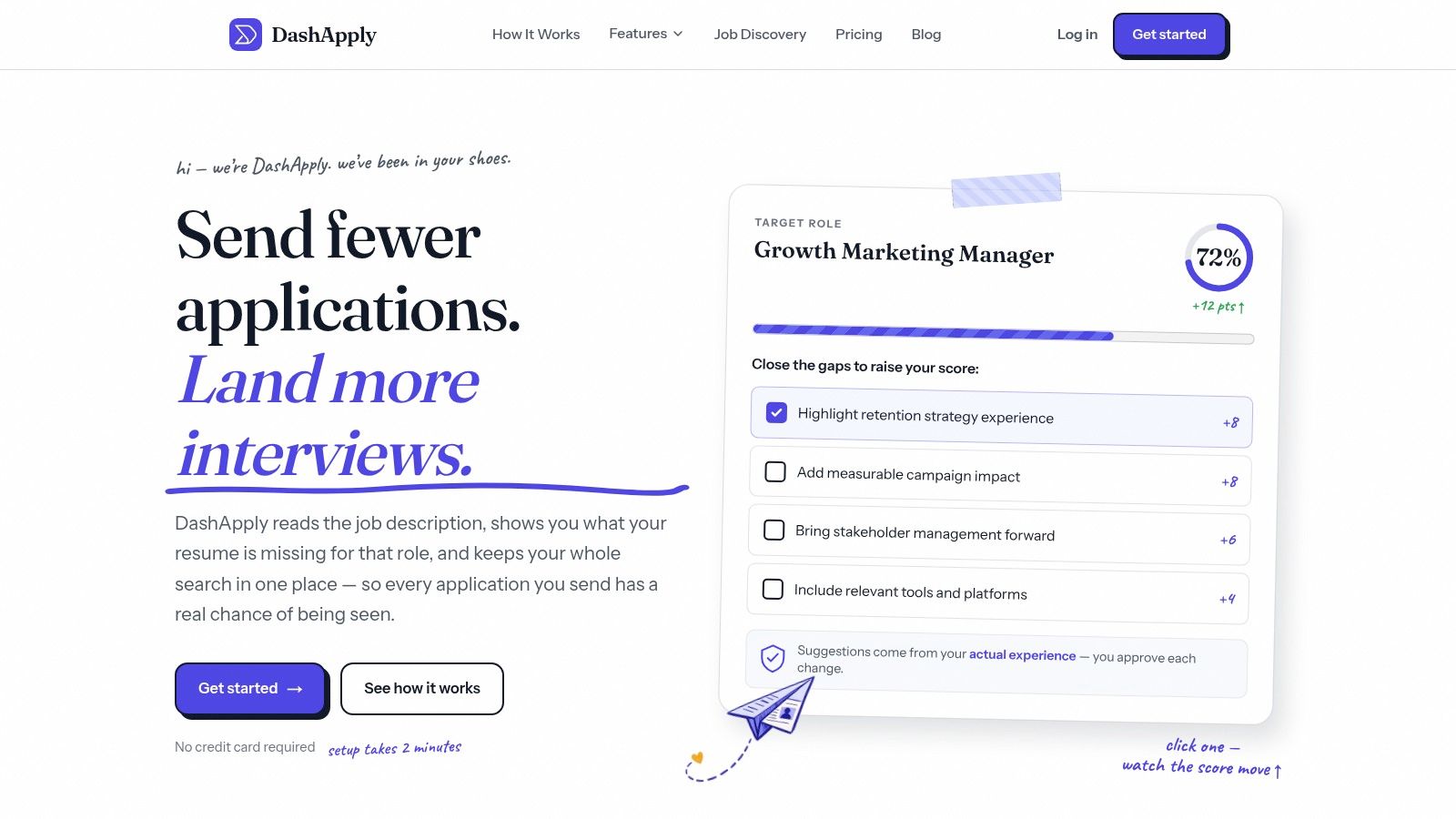
DashApply can support this handoff by analyzing a job description, connecting it with relevant experience, generating a resume and cover letter, and letting you review the drafts before submission. If you use the DashApply Chrome extension while browsing LinkedIn, you can import a job directly into DashApply, and it is added to your tracker right away so no opportunity gets lost between discovery and application. You can also use one-click resume tailoring to adapt your resume to the role before you apply. A DashApply job tracker keeps application statuses together, so you can separate roles you reviewed from applications you sent.
Keep automation under review
Automation can speed up preparation, but every generated document still needs a factual check. Verify the employer name, job title, location, dates, accomplishments, and claims about your experience.
A practical routine is simple: open the alert, scan the role, save or reject it, tailor your materials, review the result, submit through the correct path, and record the status.
Troubleshooting When LinkedIn Job Alerts Are Not Working
A missing or irrelevant alert usually points to a setup problem, not a broken LinkedIn feature. Check the search, delivery channel, and device permissions separately.
Start by testing the search itself. Open the alert from the Jobs area, note its title, location, experience level, employment type, and remote preference, then run that search manually. If the live results are already irrelevant, the issue is the query, not the notification settings.
Diagnose delivery problems
If the manual results fit but notifications are missing, check these items:
- Email: Confirm email delivery is enabled, then check spam, promotions, and filtered folders.
- App notification: In your phone settings, allow notifications for LinkedIn. Then check LinkedIn's own notification preferences.
- Alert status: Make sure the alert is still active.
- Account access: Open LinkedIn on desktop and manage the alert from the Jobs area if the mobile app does not show the right controls.
Test one delivery route at a time after each change. This makes the cause easier to spot.
Duplicate notifications usually come from overlapping searches. A role alert and a company alert may surface the same job while still serving different purposes. Keep both only if they help in different ways. Otherwise, disable the redundant alert.
If an alert disappears, check the alert management area before creating a replacement. A missing entry, inactive status, or delivery permission issue each needs a different fix.
LinkedIn's official documentation confirms that users can manage alerts and turn them off when they are no longer needed. That control also helps isolate a faulty setup without disrupting unrelated searches.
DashApply helps convert relevant alerts into organized, reviewable applications by tailoring resumes and cover letters, supporting faster submission, and tracking what you have sent. Visit DashApply to connect LinkedIn discovery with a consistent application workflow.